
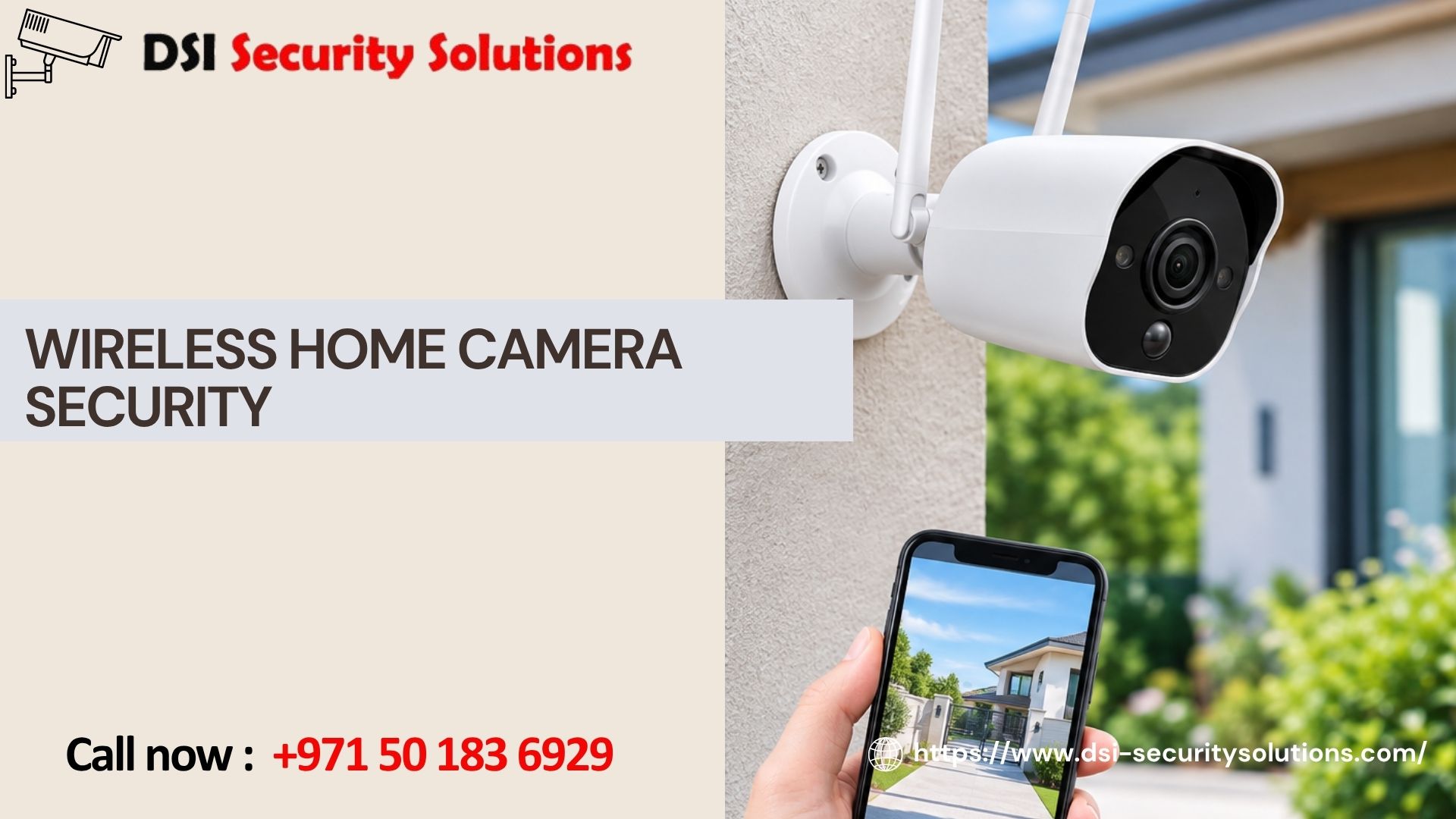
Wireless Home Camera Security: A Practical Setup Guide
Setting up wireless home camera security looks simple in a product ad, unbox a camera, connect it to Wi-Fi, and you’re protected. In practice, getting real, dependable performance out of a wireless system involves a handful of decisions that most people don’t think about until something goes wrong: a camera that keeps disconnecting, footage that’s too dark to be useful, or storage that fills up faster than expected.
This guide walks through the actual process of planning, installing, and configuring a wireless home camera security system step by step, the same process our technicians at DSI Security Solutions follow when setting up systems for homeowners across Dubai. Whether you’re doing it yourself or working with a professional, understanding these steps helps you end up with a system that performs the way you expect.
Step 1: Plan Your Coverage Before Buying Anything
The biggest mistake homeowners make is buying cameras first and figuring out placement later. Instead, start by mapping your property’s actual vulnerable points:
- Primary entry points — front door, back door, garage entrance
- Secondary access points — side gates, ground-floor windows, balconies
- Outdoor areas — driveway, backyard, perimeter walls or fence lines
- Indoor priorities — any interior areas you want monitored, such as a home office or living room
Walk your property and note where you’d want a camera positioned for each of these points before comparing products. This prevents both overspending on unnecessary cameras and missing critical blind spots.
Step 2: Choose the Right Camera Type for Each Location
Not every location needs the same camera. Match camera type to purpose:
- Video doorbell camera — front door and package monitoring
- Battery-powered outdoor camera — locations without nearby power outlets, such as a side gate or detached garage
- Plug-in Wi-Fi camera — permanent locations near an existing power source, offering more consistent uptime than battery models
- Indoor Wi-Fi camera — interior spaces, often with two-way audio for communicating with family members or checking on pets
Mixing camera types based on location, rather than buying identical units for every spot, generally produces better results and can reduce unnecessary costs.
Step 3: Check Your Wi-Fi Coverage at Each Planned Location
Before mounting anything, test your Wi-Fi signal strength at each planned camera location using your phone. Weak signal at a mounting point is one of the most common causes of laggy footage, delayed alerts, or cameras dropping offline entirely.
If certain areas show weak signal:
- Consider a mesh Wi-Fi system to extend consistent coverage across your property
- Add a dedicated access point near cameras placed far from your main router
- Choose battery-powered cameras with strong antenna range for distant locations, rather than plug-in models that may struggle with a weak connection
Skipping this step is one of the most common reasons DIY wireless camera setups underperform after installation.
Step 4: Mount Cameras at the Correct Height and Angle
Placement height and angle significantly affect footage usability:
- Entry point cameras — mount at roughly 8 to 10 feet high, angled to capture faces clearly without being easily reachable for tampering
- Wide-area cameras — position to minimize glare from direct sunlight or reflective surfaces, which can wash out footage
- Indoor cameras — place at a height and angle that captures the full room without excessive distortion at the edges
After mounting, test the camera’s live view during both daytime and nighttime to confirm the angle captures useful footage in both lighting conditions.
Step 5: Configure Motion Detection Settings
Default motion detection settings are often too sensitive, leading to constant false alerts from passing cars, shadows, or blowing trees. Adjust settings by:
- Setting detection zones to focus only on relevant areas, such as a walkway rather than the entire street view
- Adjusting sensitivity levels to reduce triggers from minor movement like tree branches or lighting changes
- Enabling AI-based person or vehicle detection, if your camera supports it, to filter out irrelevant motion entirely
Spending a few minutes fine-tuning these settings after installation dramatically improves the usefulness of your alerts going forward.
Step 6: Set Up Storage Before You Need It
Decide on your storage approach during setup, not after an incident when you discover footage wasn’t being saved properly:
- Local storage — an SD card or NVR provides one-time-cost storage but is vulnerable if the physical device is damaged or removed
- Cloud storage — offers off-site backup and remote accessibility, typically through a monthly or annual subscription
- Hybrid approach — using both local and cloud storage provides redundancy in case one method fails
Check how many days of footage your chosen storage plan actually retains, some free cloud tiers only keep recordings for a very short window before overwriting them.
Step 7: Secure Your Camera Accounts and Network
Wireless cameras are internet-connected devices, which means basic security hygiene matters:
- Use a strong, unique password for each camera account, not a password reused from other services
- Enable two-factor authentication if your camera app supports it
- Keep camera firmware updated to patch known security vulnerabilities
- Avoid sharing camera access credentials over unsecured channels
These steps significantly reduce the risk of unauthorized access to your camera feeds, an often-overlooked part of wireless home camera security setup.
Step 8: Test the Complete System
Before considering your setup finished, test the full system as if you were responding to a real event:
- Trigger motion at each camera location and confirm you receive a timely mobile alert
- Review recorded footage to confirm video quality is clear enough for identification
- Test night vision performance at each outdoor camera location
- Confirm remote access works properly when away from your home Wi-Fi network
Catching issues during this testing phase is far better than discovering a blind spot or storage failure after an actual incident.
Step 9: Establish a Maintenance Routine
Wireless home camera security systems need occasional upkeep to keep performing reliably:
- Recharge or replace batteries on a consistent schedule for battery-powered cameras
- Clean camera lenses periodically to maintain clear image quality, especially for outdoor units exposed to dust
- Check for firmware updates every few months
- Periodically review footage clips to confirm cameras are still capturing usable video and haven’t shifted position
When to Bring in Professional Help
A single indoor camera is often manageable as a DIY project. However, professional installation adds real value for:
- Multi-camera systems requiring coordinated coverage planning across a full property
- Homes with inconsistent Wi-Fi coverage that need network optimization
- Integration with existing smart home devices, alarms, or access control systems
- Larger properties where placement height, angle, and mounting hardware significantly affect performance
Professional setup also typically includes proper testing and configuration from the start, avoiding the trial-and-error process that DIY installations often go through.
How DSI Security Solutions Can Help
If setting up wireless home camera security sounds like more than you want to manage on your own, we handle the entire process for you, from initial coverage planning through installation, configuration, and testing. Our services include:
- Free consultations to map your property’s specific coverage needs
- Professional camera placement and secure mounting
- Wi-Fi assessment and network optimization where needed
- Storage setup and configuration based on your budget and retention needs
- Ongoing support and maintenance after installation
Get Your Wireless Home Camera Security System Set Up Right
Whether you want a professional to handle the entire setup or just need expert advice before doing it yourself, DSI Security Solutions is here to help. Contact us today for a free consultation and a custom recommendation for your home.
Frequently Asked Questions
How long does it take to set up wireless home camera security?
A single camera can typically be set up within 30 to 60 minutes. A full multi-camera system, including Wi-Fi testing, mounting, and configuration, usually takes a few hours to a full day depending on the number of cameras and property size.
What’s the most common mistake people make when setting up wireless cameras?
Skipping the Wi-Fi signal test before mounting cameras is one of the most common issues, leading to laggy footage or dropped connections after installation. Planning coverage and testing signal strength beforehand prevents this.
Do I need a professional to set up a wireless home camera system?
Not always, a single camera is often manageable as a DIY project. However, multi-camera systems, weak Wi-Fi areas, or integration with other smart home devices typically benefit from professional installation and configuration.
How do I reduce false motion alerts from my wireless cameras?
Adjust detection zones to focus only on relevant areas, lower sensitivity settings, and enable AI-based person or vehicle detection if your camera supports it, to filter out irrelevant movement like trees or passing traffic.
What should I do if my wireless camera keeps disconnecting?
Check the Wi-Fi signal strength at the camera’s location first, weak signal is the most common cause. If needed, consider a mesh network system or dedicated access point to improve coverage in that area.
Is cloud storage necessary for wireless home camera security?
No, local storage via an SD card or NVR is a valid alternative that avoids ongoing subscription costs. Cloud storage offers additional benefits like off-site backup and remote accessibility, but it isn’t required for a functional system.
How often should I maintain my wireless home camera system?
Check battery levels and clean camera lenses every few months, and review footage periodically to confirm cameras haven’t shifted position or lost clarity. Firmware updates should also be checked and applied regularly.